How to Generate AI Images and Videos With the CloneViral CLI
Install cviral, generate images and video, check job status, and upload or download Viral Flow assets from your terminal.
Posted by
 Jet
Related Reading
How to Create Realistic AI Video Ads in 2026: From Brief to a 30-Second Story
Build a believable AI video ad with a complete 30-second script, six-shot storyboard, copyable prompts, product consistency checks, and a practical editing workflow.
Create AI Videos With CloneViral Plugins for GPT and Claude
Connect CloneViral to Claude Code or ChatGPT Work local / Codex, then generate images, direct shots, and build video workflows in chat.
CloneViral MCP: Generate AI Images and Videos From Your Assistant
Connect a compatible MCP client to CloneViral, verify account access, and use tools for generation, cinematic shots, translation, and Viral Flow.
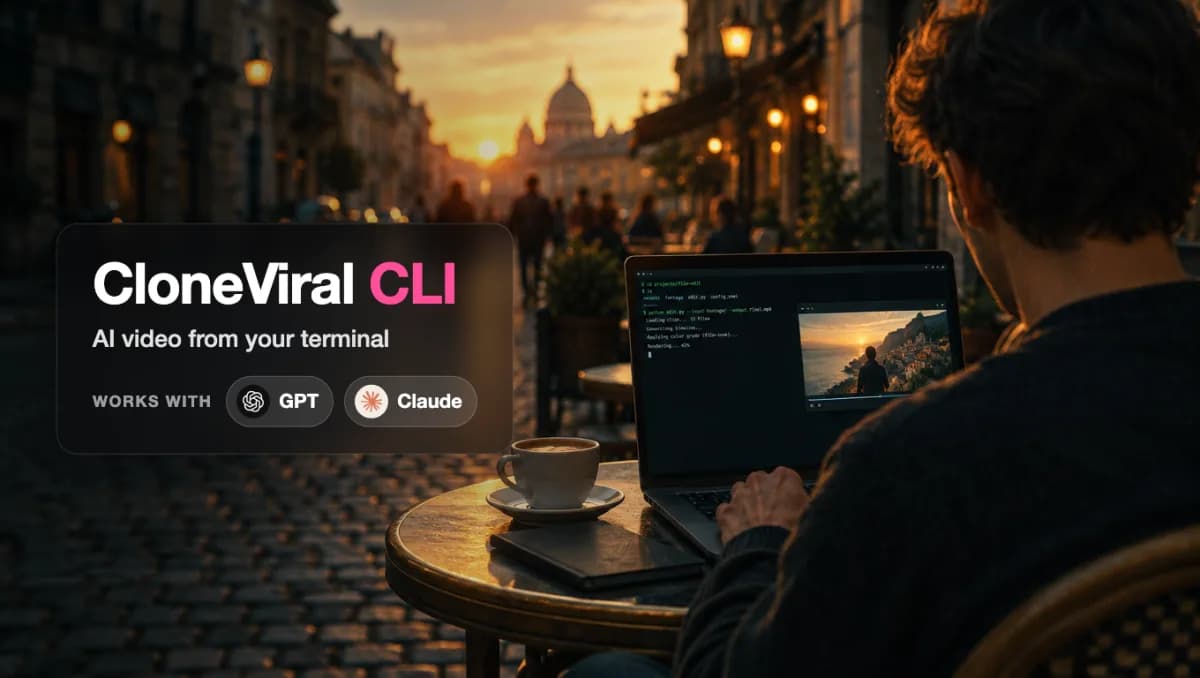
The CloneViral CLI brings image generation, video generation, Director Studio, and Viral Flow into your terminal. Use it for a single shot, a repeatable production script, or a coding agent that needs to work with local media files.
The npm package is @cloneviral/cli, and the executable is cviral. This guide follows the CLI 1.8.0 source. Check cviral --help for the options supported by your installed version.
Install and connect your account
You need Node.js 18 or later, npm, and a CloneViral API key. Create a key on the API keys page, then configure CLONEVIRAL_API_KEY in your shell environment. Keep the key out of chat messages and source control.
npm install -g @cloneviral/cli
cviral --help
cviral credits
Run cviral credits after configuring the environment variable to verify the connection and inspect your balance. Media generation can consume account credits; a working connection does not mean generation is free.
Create an image, then animate it
Start with a product frame that you can review before making a video:
cviral image "Studio photograph of a silver skincare bottle on pale stone, soft morning window light, no text" --model flux-2-pro --ratio 9:16
Keep the prediction ID returned by the command. If the image is still processing, check it with:
cviral status YOUR_IMAGE_PREDICTION_ID --type image
Once it finishes, copy the actual output URL into the next command. The URL below is a placeholder; replace it with your generated image URL.
cviral video "Slow push toward the bottle, soft light shifts across the metal, preserve the product shape" --model seedance2.5-i2v --start https://example.com/your-generated-frame.png --duration 5 --ratio 9:16 --res hd
cviral status YOUR_VIDEO_PREDICTION_ID --type video
A submitted prediction is a running job, not a finished video. Keep its ID and continue checking that job rather than submitting another generation whenever a render takes longer than expected.
Direct a cinematic shot
Director Studio separates the still frame's look from the camera movement. Discover the presets before choosing one:
cviral presets looks
cviral presets moves
cviral frame "a lone astronaut on a rain-soaked rooftop" --look blockbuster --size wide
Check the frame's prediction with --type image. After it completes, use its output URL:
cviral shot --start https://example.com/your-completed-frame.png --move crash-zoom-in --duration 5
This makes it easier to approve composition first and decide how the camera should move second.
Bring local files into Viral Flow
Viral Flow connects production steps as nodes. The CLI is especially useful when your source footage is on disk or your final assets need to land in a local project folder.
cviral flows
cviral flow show YOUR_FLOW_ID
cviral flow upload ./hero.jpg
cviral flow run YOUR_FLOW_ID --node YOUR_NODE_ID --watch
cviral flow pull YOUR_FLOW_ID --out ./assets --generated
Use the URL returned by flow upload as an input in your flow before running the relevant node. Uploading a file alone does not wire it into a graph. flow show reports node readiness and estimated cost; run steps in dependency order. flow pull downloads assets, so those files are available to your editor or delivery script.
More workflows from the same terminal
Use cviral analyze <videoUrl> to study a source video, cviral remix <videoUrl> --count 3 to build remix variants, and cviral translate <videoUrl> --lang ja to submit a translation job. Translation uses cviral translate-status <jobId> for progress.
Motion Studio also has a CLI route:
cviral motion-models
cviral motion "A 12-second kinetic typography promo for a habit app, bold headings and clean transitions" --ratio 9:16 --duration 12 --watch
Inspect the available writing models and prices before choosing a Motion Studio model.
CLI, plugin, or MCP?
| Route | Best fit | Setup |
|---|---|---|
| CLI | Shell scripts and local uploads/downloads | npm package and API key |
| Plugin | Guided creative work inside a supported assistant | Packaged skill and MCP connection |
| MCP | Connecting your own compatible assistant | Remote endpoint or stdio server |
Choose the CLI when file handling and explicit commands matter. For conversational production, read the GPT and Claude plugin guide. For client configuration and tool workflows, read the MCP guide.
Frequently asked questions
Can I use my browser login instead of an API key?
This CLI reads CLONEVIRAL_API_KEY. Configure that variable before running account or generation commands.
Does every command wait until the video is finished?
No. Keep the returned prediction ID and use cviral status. Some workflows expose a --watch option; consult the help for that command.
Can I pass a local image path to every generation command?
Generation examples use URLs. For a local file, cviral flow upload returns an uploaded URL that you can use where the selected workflow accepts it.
Premium AI Video Generation Experience
We support advanced AI video generation technology for viral content
Start Creating Now